

Trading essentials
How to Install MetaTrader 4: Step-by-Step Guide | CPT Markets
MT4 is a forex and CFDs trading platform widely used by traders today. Even though it was launched back in 2005, it’s still trusted thanks to its user-friendly interface while offering everything a trader needs to trade effectively.
In this guide, CPT will walk you through how to install MT4 on both desktop and mobile with just a few simple steps. You’ll also pick up some practical tips to fix common issues and optimize performance, so you’re fully ready to step into the market.
What is MT4?
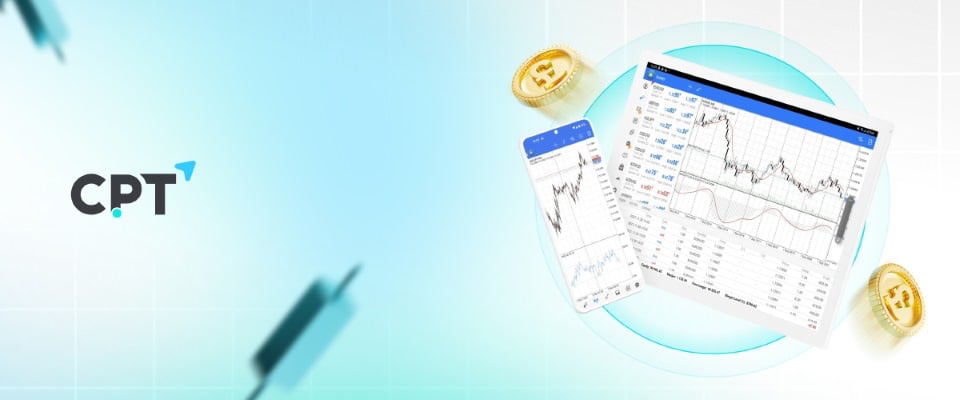
MetaTrader 4, or MT4 for short, is a trading platform developed by MetaQuotes Software in 2005, designed for trading CFDs and other financial instruments, including forex, cryptocurrencies, stocks, and indices.
MT4 offers a complete trading environment, combining a wide range of technical analysis tools, a user-friendly interface, and the ability to automate trades through Expert Advisors. It has become an industry standard thanks to its flexibility and support for multiple order types.
It’s no coincidence that MetaTrader 4 is often seen as one of the best forex trading platforms and is widely favored by traders. That’s mainly due to the following key features:
– Real-time quotes and liquidity: Helps you track market movements quickly and accurately, so you don’t miss important trading opportunities.
– Comprehensive technical analysis tools: From popular indicators like RSI and MACD to more advanced tools, giving you the data you need to make informed trading decisions.
– Support for multiple order types: Including market orders, pending orders, stop loss, and take profit, offering maximum flexibility in risk management and capital protection.
– High security and stability: Keeps your personal information and trading data safe, protecting your account from technical issues and unauthorized access.
– Automated trading (Expert Advisors): Allows you to set up automated strategies, reduce manual work, and keep your trading running efficiently 24/7.
MT4 Installation Guide for Beginners
A detailed MT4 installation guide is the first step to help you get started with MetaTrader 4 quickly and correctly. In this section, CPT will walk you through how to download and install MT4 on popular devices, including mobile phones and computers, so you can meet your trading needs and enjoy a smooth experience.
3 steps to install MT4 on mobile (Google Play, iOS)
Step 1: Go to the CPT Markets Download page here.
Step 2: Select the app store that matches your device’s operating system.
Step 3: Download and install.
The download and installation process will run automatically. In some cases, you may need to allow the app access to certain features on your phone. With MT4 on mobile, you can monitor the market and place trades anytime, anywhere, while still having full access to technical analysis tools and timely market updates.
3 steps to install MT4 on a laptop and a desktop
Step 1: Go to the CPT Markets Download page here.
Step 2: Select Windows and click Save to download the file to your computer.
Step 3: Follow the on screen instructions to complete the installation.
Once the installation is complete, you can open MT4 from the desktop icon or through the Start menu. Then, log in to your CPT Markets trading account or sign up for a new one to start using the platform.
If you’re still learning and not ready to trade with real money, our Demo Account is a great place to start. You can explore the platform freely, test your trading strategies, and practice with virtual funds using real-time market data.
Get started now and experience it for yourself!
Explore account information
Review account details, terms, and risks on the official CPT website.
How to Fix Common MT4 Installation Issues
The MT4 installation process can sometimes encounter issues that prevent the platform from working smoothly. That’s why CPT will walk you through how to fix these problems, so you can save time and avoid unnecessary interruptions when getting started.
Can’t download MT4 due to network or browser issues:
– This usually happens because of an unstable internet connection or browser related problems.
– To fix it, check your internet connection, try a different browser, or clear your cache and cookies. Keep your antivirus and firewall enabled. If a download is blocked, verify that it comes from the official CPT Markets website and contact CPT Markets support or your IT administrator before proceeding.
Fix installation failure on Windows:
– If MT4 fails to install or doesn’t complete on Windows, try running the installer as an administrator by right-clicking and selecting “Run as administrator.”
– Make sure your computer meets the basic system requirements and is updated to the latest version of Windows.
– Keep security software enabled. Close unnecessary applications, restart your computer and retry the official installer. If security software flags the file, stop and ask CPT Markets support or your IT administrator to verify it.
Useful MT4 Tips for New Traders
Getting familiar with practical tips and real trading experience when using MetaTrader 4 will help you improve performance, make the most of its analysis tools, and keep your account and trading data secure. These are skills many professional traders have built over time.
First, optimize MT4’s speed and performance on your computer. Performance depends on your device, internet connection, and how you manage historical data. Even though MT4 is lightweight, you should still regularly clear unnecessary cache data. Also, remove unused indicators and avoid opening too many charts at once if you notice lag or delays.
Next is security, which is essential in online trading. Use a strong password and avoid logging in on public devices or unsecured Wi-Fi networks. Also, make sure to download MT4 only from the official CPT Markets website to avoid fake sources that could expose you to harmful software.
Finally, if you switch devices but want to keep your MT4 setup, regularly back up your Profiles and Templates files. This allows you to quickly restore your trading environment if MT4 runs into issues or needs to be reinstalled.
Essential MT4 Shortcuts You Should Know
MT4 comes with a range of keyboard shortcuts that help you work faster while trading, saving time when analyzing charts or placing orders. Here are some useful ones we’ve put together for you:
| F9 | Open a new order window |
| F11 | Toggle full screen mode |
| F12 / Shift + F12 | Move the chart forward / backward |
| Alt + 1 / Alt + 2 / Alt + 3 | Switch chart types (Bar, Candlestick, Line) |
| Ctrl + D | Show/Hide Data Window |
| Ctrl + E | Enable/Disable Expert Advisors |
| Ctrl + G | Show/Hide grid |
| Ctrl + L | Show/Hide volumes |
| Ctrl + M | Open/Close Market Watch |
| Ctrl + S | Save chart data |
| Ctrl + W or Ctrl + F4 | Close the currently active chart window |
CPT hopes this MT4 installation guide can be a helpful resource for everyone. That said, installation is only the first step. To truly get the most out of the platform, traders need to understand how it works, make the most of its tools, and build disciplined trading habits.
With that in mind, to give every trader a smooth start, we provide an ideal practice environment for beginners. You’re free to explore MT4, MT5, and trade any market you like using virtual funds through CPT Markets’ Demo Account.
Download MetaTrader 4 and Start Trading with Virtual Funds!
Explore account information
Review account details, terms, and risks on the official CPT website.
Related articles
- Forex essentials
Base Currency vs Quote Currency: How Forex Pairs Are Read
A currency pair shows the value of one currency relative to another. The base currency is the first currency in the pair, while the quote currency is the second. The exchange rate tells you how many units of the quote currency are needed to buy one u
12 min read · estimated↗ - Trading essentials
What Is a Trader? Types, Skills, and How Trading Works
A trader is an individual who buys and sells financial instruments or takes positions in financial products to seek profits from changes in market prices. Traders operate across markets such as foreign exchange (forex), shares, indices, commodities,
13 min read · estimated↗ - Digital assets
What Is Litecoin (LTC)? How It Works, Uses, and Risks
Litecoin (LTC) is a decentralised cryptocurrency designed to enable peer-to-peer transactions without requiring a central authority to process them. Launched in 2011, it uses a public blockchain and a proof-of-work consensus mechanism to record trans
12 min read · estimated↗